HomePod or HomePod mini Not Responding / Won't Connect to Wi-Fi
Quick summary
Most "HomePod won't respond to Hey Siri" or "HomePod won't connect to Wi-Fi" problems come down to one of three things: a home Wi-Fi network change (new router, new password, or switched to a 5GHz-only network HomePod can't see), the Home app losing track of the HomePod, or the HomePod genuinely needing a reset. Work through these in order — a full reset is the last step, not the first, since it clears all HomePod-specific settings.
Symptoms you might see
- "Hey Siri" gets no response, or Siri says it can't connect to the network.
- HomePod shows up in the Home app but is greyed out or listed as "Not Available."
- The light on top pulses or stays solid but nothing happens when you talk to it.
- HomePod disappeared from the Home app entirely after a router change.
Step-by-step fix
1. Check the light on top first
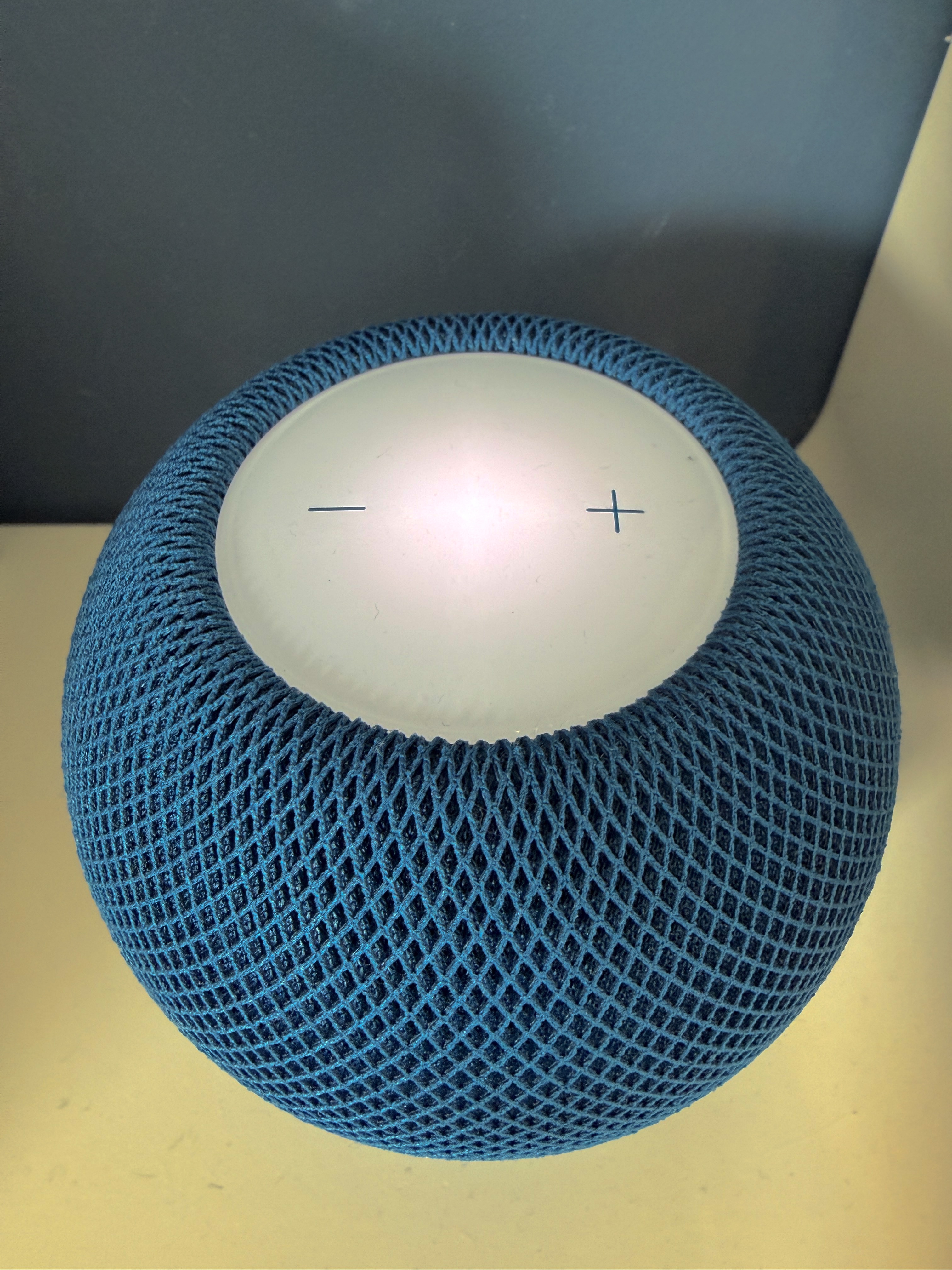
A steady white glow means it's on and idle. A spinning white light usually means it's actively doing something (starting up, updating, or resetting) — give it a minute before assuming it's stuck.
2. Confirm your Wi-Fi network itself is fine
If you recently changed your router, its password, or switched to a mesh Wi-Fi system, HomePod needs to be reconnected — it doesn't do this automatically like a phone might. Check in the Home app whether other accessories on the same network are also having issues; if everything's affected, the problem is the network, not the HomePod.
3. Try resetting it through the Home app first (least disruptive)
Open the Home app on an iPhone, iPad, or Mac signed in with the same Apple Account used to set up the HomePod.
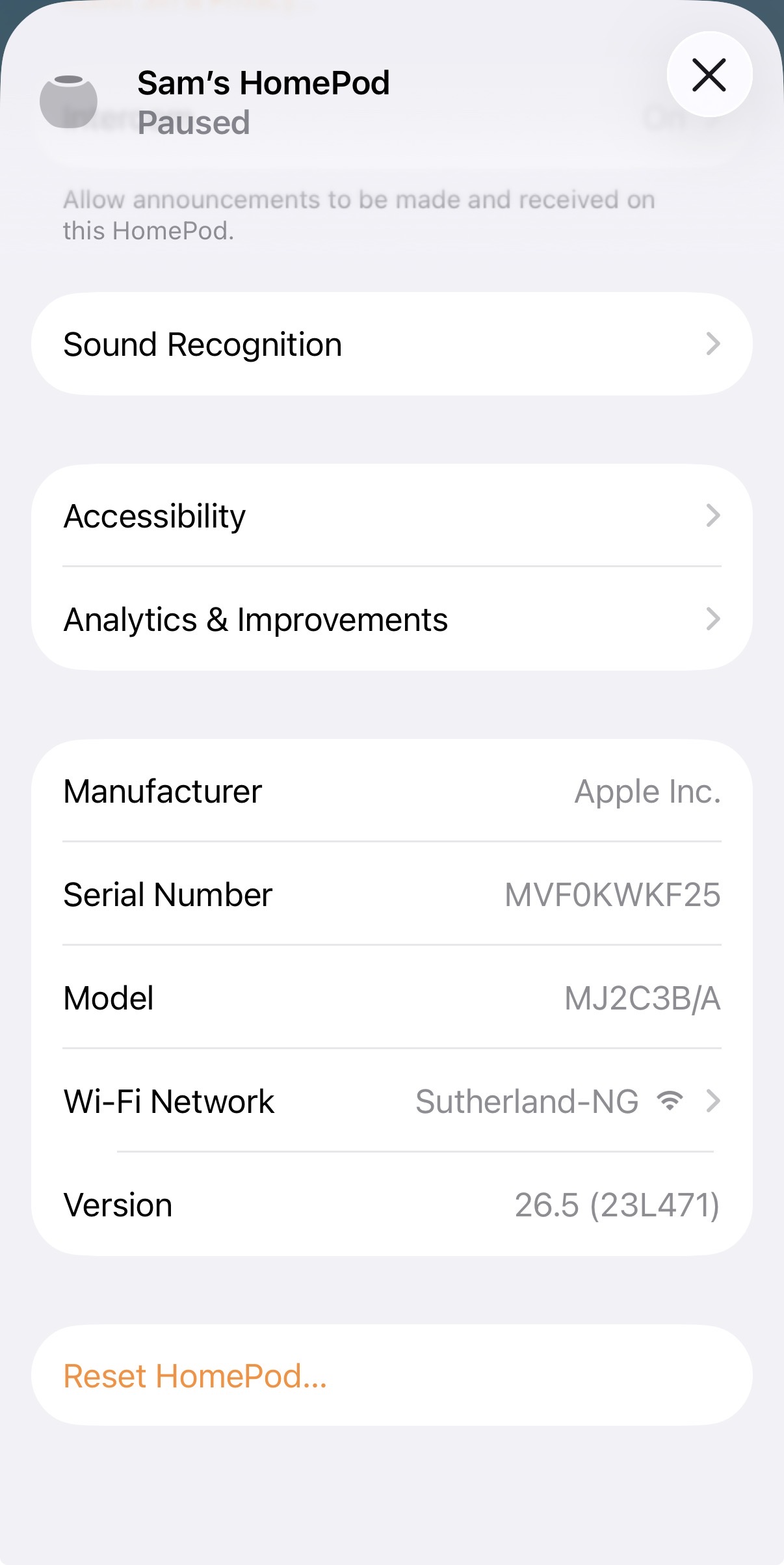
Tap or click the HomePod, then tap the Settings (gear) icon.
Tap Reset HomePod, then confirm Remove Accessory.
Wait for the white spinning light to stop, then set it up again from scratch in the Home app.
4. If the Home app can't see it at all, reset it manually on the device
Unplug the HomePod from power.
Wait at least 10 seconds, then plug it back in.
Wait another 10 seconds, then touch and hold your finger on the top of the HomePod.
Keep holding — the white spinning light will turn red, and Siri will announce the HomePod is about to reset.
Release once you hear three beeps.
5. HomePod mini only: restore via cable if it still won't reset
If a HomePod mini specifically is completely unresponsive to both methods above, you can restore it by plugging it into a Mac or PC with its USB-C cable and using Finder (on a Mac) or the Apple Devices app/iTunes (on a PC) to select it and choose Restore HomePod. This method doesn't apply to the full-size HomePod, which doesn't have a data-capable port for this purpose.
6. Set it back up and reconnect to Wi-Fi
After any reset, open the Home app, tap Add Accessory, and bring your iPhone close to the HomePod to trigger the setup card, then follow the prompts to rejoin your Wi-Fi network.
Still not working?
If a full reset and fresh setup still won't get the HomePod onto your network or responding to Siri, and other devices connect to the same Wi-Fi fine, that points to a hardware fault in the HomePod itself — book a check with Apple Support or an Apple Authorised Service Provider.

Created by: Sort IT
Still not sure? Have a question?
Report content
×Report submitted
Thanks for helping keep Sort IT accurate.