iPhone Face ID Not Working
Quick summary
Face ID failures are almost always one of three things: something physically blocking the TrueDepth camera (case, screen protector, dirt), a face that's changed enough that re-enrollment helps (facial hair, glasses, a mask), or a software glitch that clears with a restart or update. True hardware failure is uncommon and usually shows up alongside other camera problems, not Face ID alone.
Symptoms you might see
- iPhone falls back to asking for your passcode every time, never even attempting Face ID.
- Face ID works sometimes but not consistently, especially in low light or when wearing glasses/a mask.
Face ID & Passcodeis missing from Settings entirely (a known glitch on some iOS 26 builds).- Face ID stopped working right after a screen repair or case change.
Step-by-step fix
1. Check what's covering the TrueDepth camera
The sensor array lives in the small notch/Dynamic Island area at the top of the screen. A case that sits slightly too high, a screen protector that isn't officially Face ID-compatible, or a thick tempered-glass edge can all block it.
2. Clean the sensor area
Wipe the top edge of the screen (including the actual camera and sensor dots) gently with a soft, dry cloth. Dust and smudges here are a more common cause than people expect.
3. Try Face ID with glasses/hats/masks removed, then re-add them
Go to Settings → Face ID & Passcode, enter your passcode, and check whether "Face ID with a Mask" or an alternate appearance is set up if that's relevant to you. If your look has changed significantly (new glasses, grown or shaved facial hair), it's worth re-enrolling rather than assuming something's broken.
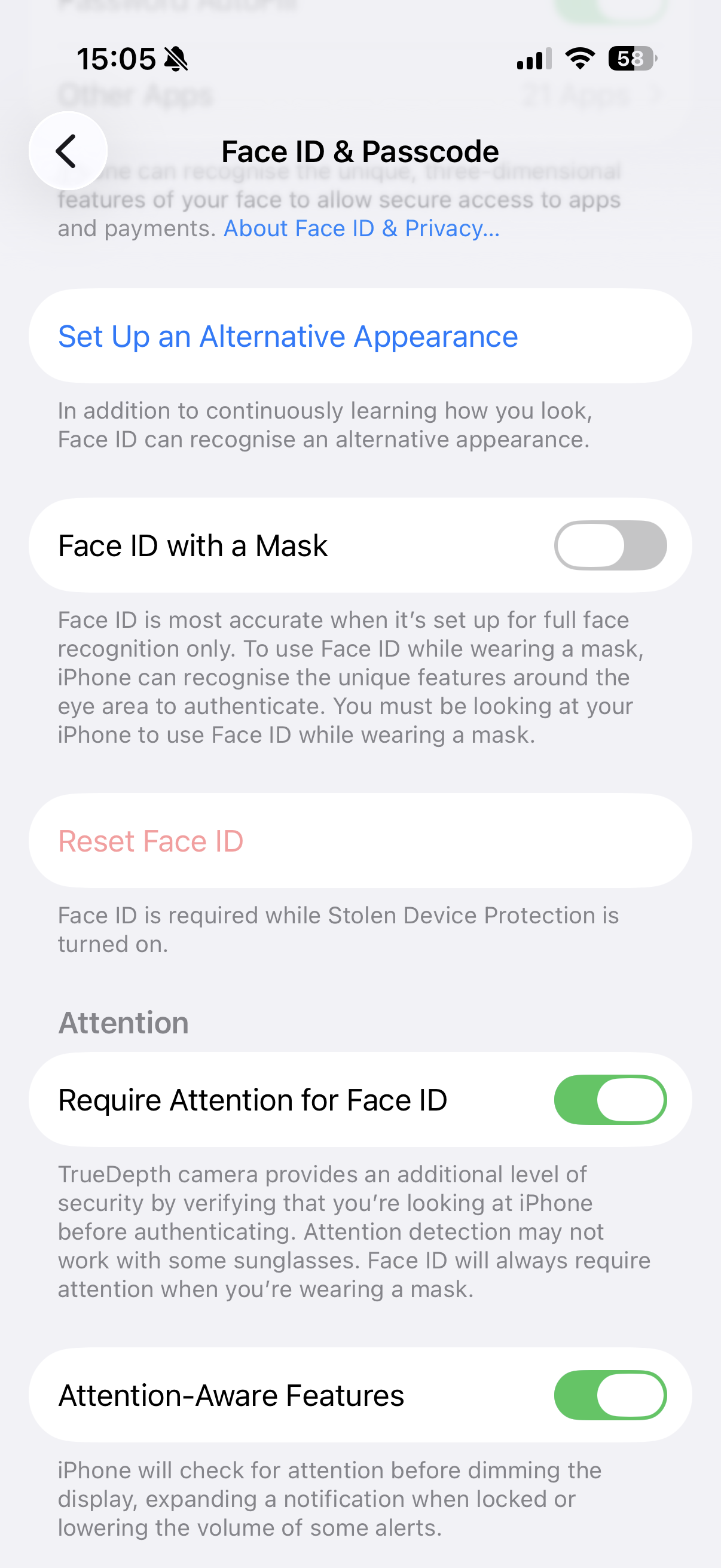
4. Reset and re-enroll Face ID
In the same screen, tap Reset Face ID, then set it up again from scratch via Set Up Face ID, following the on-screen circular head movement prompt in good, even lighting.
5. Restart the iPhone, then check for a software update
A simple restart clears a surprising number of one-off Face ID glitches, including the "Face ID & Passcode missing from Settings" bug some people hit. Then check Settings → General → Software Update and install anything available — Apple has fixed Face ID edge cases in point releases before.
6. Reset All Settings (no data loss)
If Face ID still won't work reliably, go to Settings → General → Transfer or Reset iPhone → Reset → Reset All Settings. This clears system-level preferences (not your photos, apps, or messages) and can resolve a corrupted settings state without needing a full restore.
Still not working?
If Face ID fails to even attempt scanning, or the camera app also shows problems with the front camera, that points to a hardware fault — most commonly after a non-Apple screen repair that didn't preserve the TrueDepth module's calibration. Book a check with Apple Support or an Apple Authorised Service Provider; Face ID hardware repairs need to be done by a trained technician to keep the sensor properly calibrated.

Created by: Sort IT
Still not sure? Have a question?
Report content
×Report submitted
Thanks for helping keep Sort IT accurate.