MacBook Won't Support More Than One External Display
Quick summary
This isn't usually a fault — it's a hard chip-level limit, and it changes depending on exactly which Apple Silicon chip is in your Mac. A base M1, M2, or M3 MacBook genuinely cannot drive two external displays at once without a specific workaround (or at all, for M1/M2). If you've plugged in a second monitor and only one lights up, the first thing to check is which chip you actually have, not the cable.
Step 1: Identify your exact chip
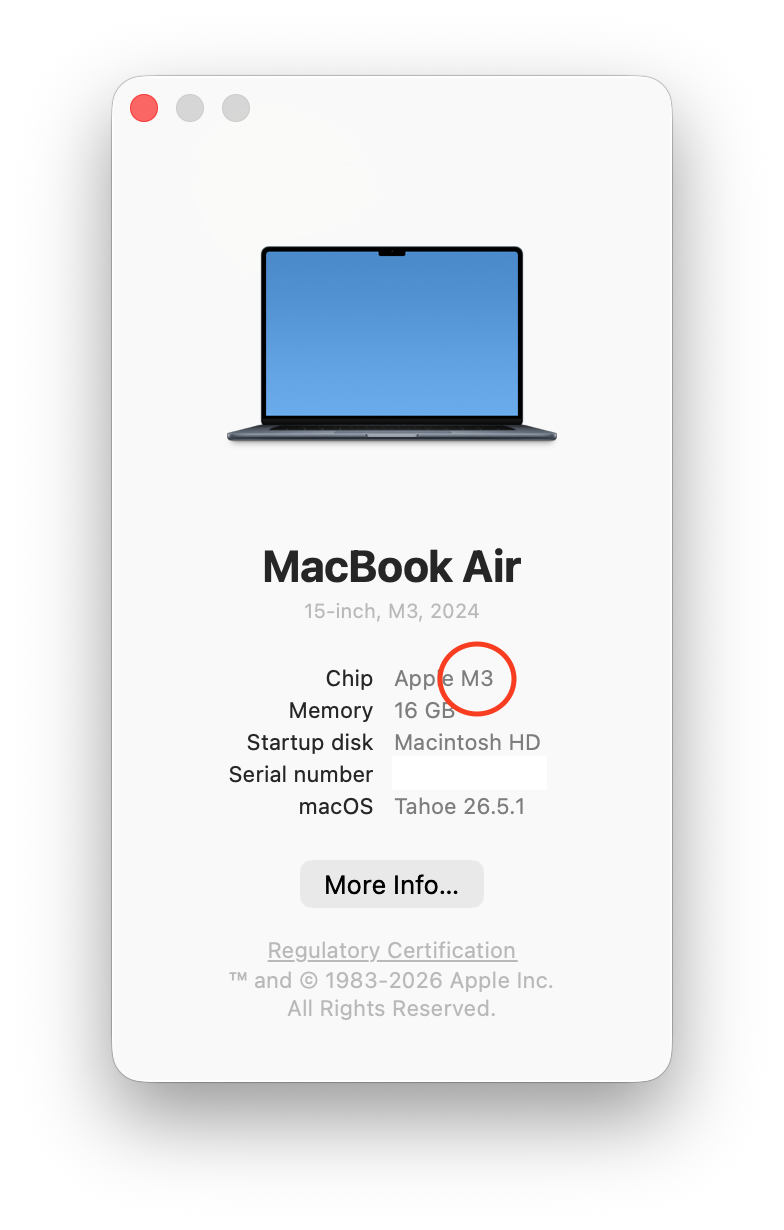
Go to Apple menu → About This Mac and check whether it says plain "M3" or "M3 Pro" / "M3 Max" (and the equivalent for M1/M2/M4/M5) — the Pro/Max variant matters enormously here, not just the chip number.
Step 2: Check your chip against its actual display limit
If your Mac is a base M1 or M2 and you need two monitors at once, there's no supported way to do it on that hardware — a chip-level limit, not a settings or cable issue. Options are a base M3 (with the clamshell workaround), an M4 or later, or a Pro/Max chip.
Step 3: If you have an M3 base chip and only get one display
The second display only becomes available with the lid closed (clamshell mode), which requires the Mac to be connected to power and an external keyboard/mouse, since the built-in screen and keyboard aren't usable at that point.
Connect both external displays first, along with external keyboard and mouse.
Connect the Mac to power.
Close the lid.
Wake the Mac by pressing a key on the external keyboard or clicking the external mouse.
Step 4: If you have a chip that should support 2+ displays but only one works
Check you're using a display adapter/dock capable of the resolution and refresh rate you want — a cheap USB-C hub can silently fail to drive a second 4K/60Hz display even when the chip itself supports it.
Try each display on its own first, on the same port, to rule out a faulty cable or monitor before assuming it's a Mac limitation.
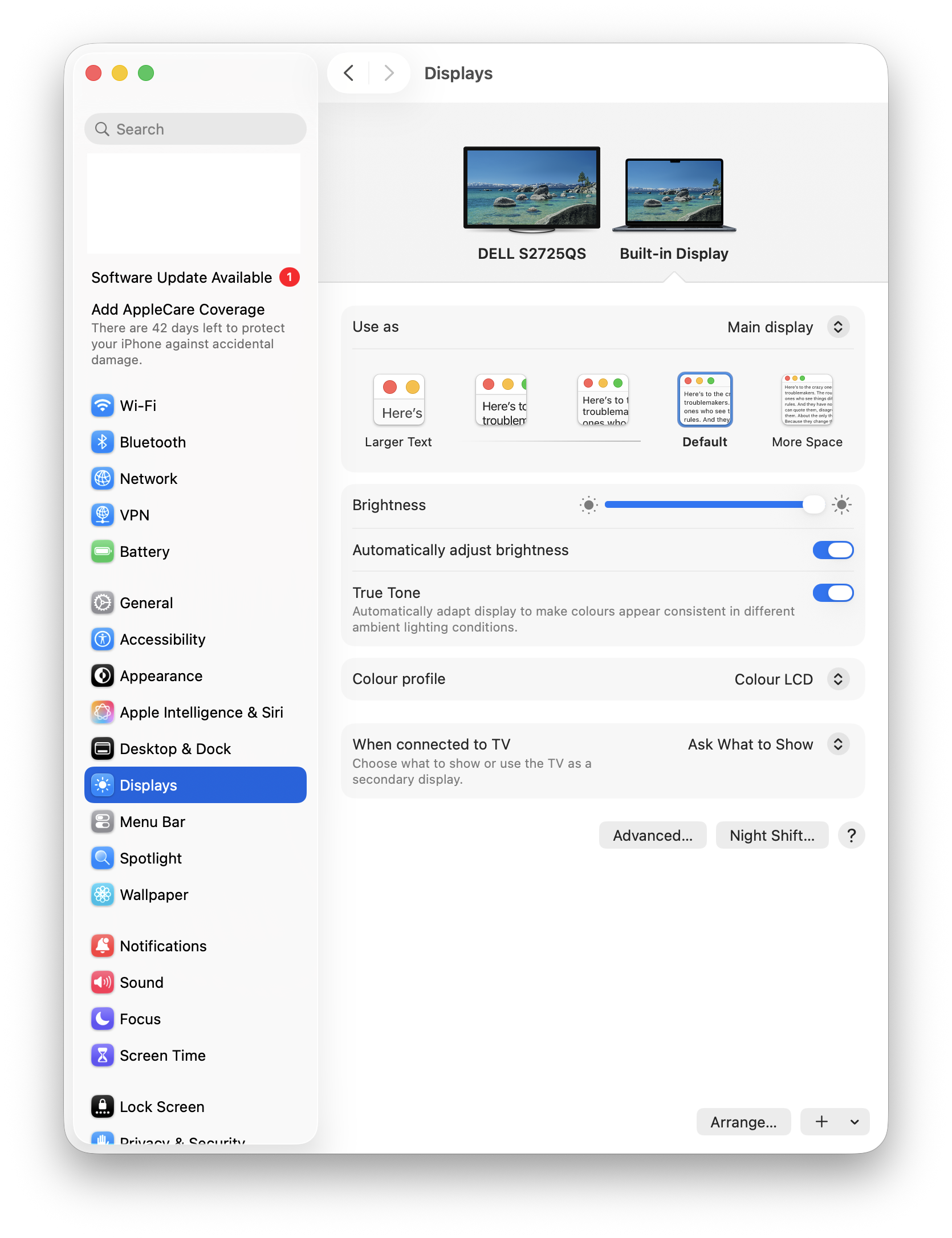
Confirm in System Settings → Displays whether the second display is listed as detected but blank (a signal/cable issue) versus not listed at all (a driver/dock issue).
Still not working?
If your chip's rated display count still isn't achievable after trying a different dock/cable and confirming detection in System Settings, this points to either a dock/adapter incompatibility or a genuine port fault — try a different, known-good Thunderbolt/USB-C dock before booking a hardware check with Apple Support.

Created by: Sort IT
Still not sure? Have a question?
Report content
×Report submitted
Thanks for helping keep Sort IT accurate.